

When to Use OOB Over Custom Implementations in ServiceNow
A Practical Guide for Developers, Architects & Administrators
By Yamini Manjusha
In any ServiceNow implementation, choosing between Out-of-the-Box (OOB) functionality and Custom development is one of the most important architectural decisions.
This article serves as a practical, real-world guide to help Developers, Administrators, Consultants, and Architects understand when to use OOB, when customization is justified, and how to make informed decisions based on business needs. Whether you are working on ITSM, HRSD, ITOM, CSM, Flow Designer, Integrations, or Custom Applications, the OOB-vs-Custom decision impacts the long-term health, performance, and success of the entire ServiceNow ecosystem.
Why this decision matters?
Have you ever opened a ServiceNow instance and thought:
“Why does every upgrade feel like a mini-project?”
“Why are there five different ways to do the same thing?”
“Why is this simple change going to take a sprint and three code reviews?”
Most of the time, the problem isn’t ServiceNow, but over-customization.
Custom code added “just for this one requirement” slowly turns into:
Upgrade failures and long upgrade testing cycles
High maintenance effort and dependency on specific developers
Inconsistent user experience across modules
Growing technical debt that blocks innovation
This article provides:
A clear understanding of what OOB really means in ServiceNow
The benefits and risks of OOB vs Custom
A decision-making framework used by real architects in enterprise projects
Practical real-time scenarios that demonstrate how the decision differs depending on the requirement
Step-by-step examples that can be executed on a developer instance
Screenshots and workflow illustrations to support learning and project documentation
What “OOB” Really Means
OOB (Out-of-the-Box) refers to ServiceNow’s native, prebuilt features including:
Forms & Fields
Workflows / Flows
Business Rules
Email Notifications
Dashboards
SLAs
Integrations using spokes
ITSM, ITOM, CSM modules
These features are:
Built and tested by ServiceNow
Designed to be secure, scalable, and upgrade-safe
Widely used across thousands of customers
Why OOB Should Be the Default Starting Point:
(Before you jump into writing a script or building a custom component, it’s worth asking: “Can this be done using OOB?”)
Starting with OOB usually gives you:
Upgrade-Safety:
OOB features automatically support upgrades. (Customizations often break during major releases.)
Faster Delivery:
OOB solutions can be deployed in hours instead of days or weeks.
Lower Maintenance Cost
Less code = fewer bugs = less long-term headache.
Security & Quality Controls
OOB features are tested across thousands of customers.
Aligned With Best Practices
OOB functionalities are designed based on industry standards.
When You Should Use OOB
Requirement Already Exists in the Platfor. If ServiceNow already provides the functionality, avoid building it again.
Requirements Can Be Met Through Configuration
Such as fields, layouts, UI policies, SLAs—no scripting required.
Requirement Does Not Offer Unique Business Value
If every company uses it, ServiceNow likely supports it OOB.
Requirement Must Be Upgrade-Proof
OOB minimizes upgrade issues.
Customer Prefers Low Maintenance
OOB is lightweight and easy to support.
When Customization is Justified
Business-Specific or Unique Needs:
If workflows are industry-specific, customization may be required.
Complex or Non-standard Integrations:
API transformations or custom authentication.
Performance Optimization:
When heavy logic requires scripting.
Advanced UI/UX Requirements:
Custom widgets or portals beyond standard UI.
Compliance / Regulatory Requirements:
Industries like banking or pharma may need custom logic.
Decision Framework: OOB vs Custom
Is the requirement available OOB? →Yes → Use OOB
Can configuration solve it? → Yes → Use OOB
Will customization break upgrades? → Yes → Rethink/ Redesign
Is it a unique business requirement? → Yes → Customize
Is the customer okay with maintenance? → Yes → Customize
Real-Time Example:
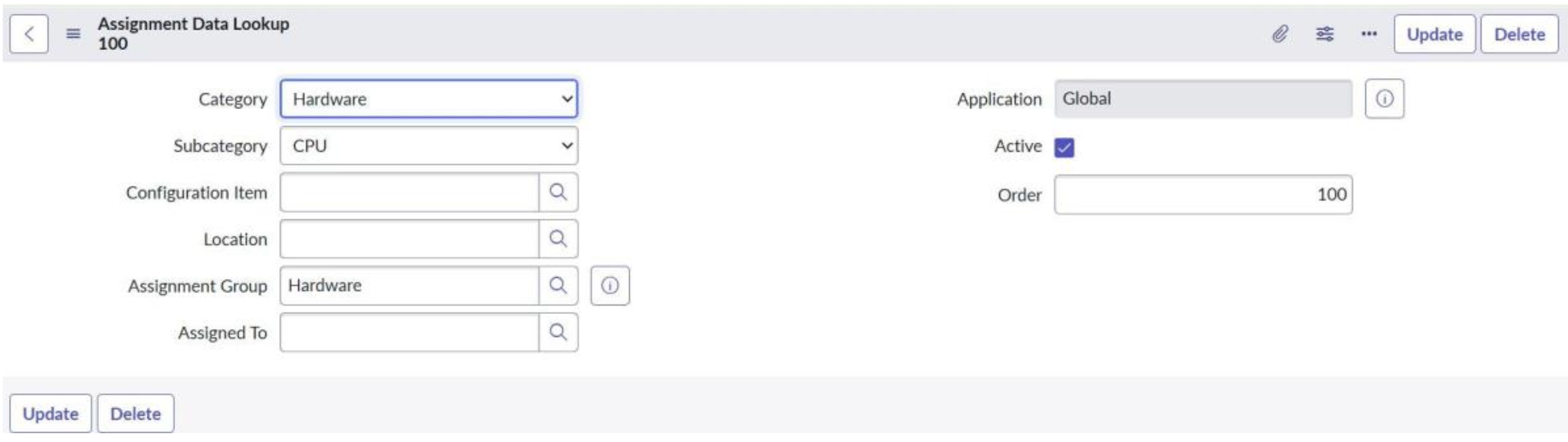
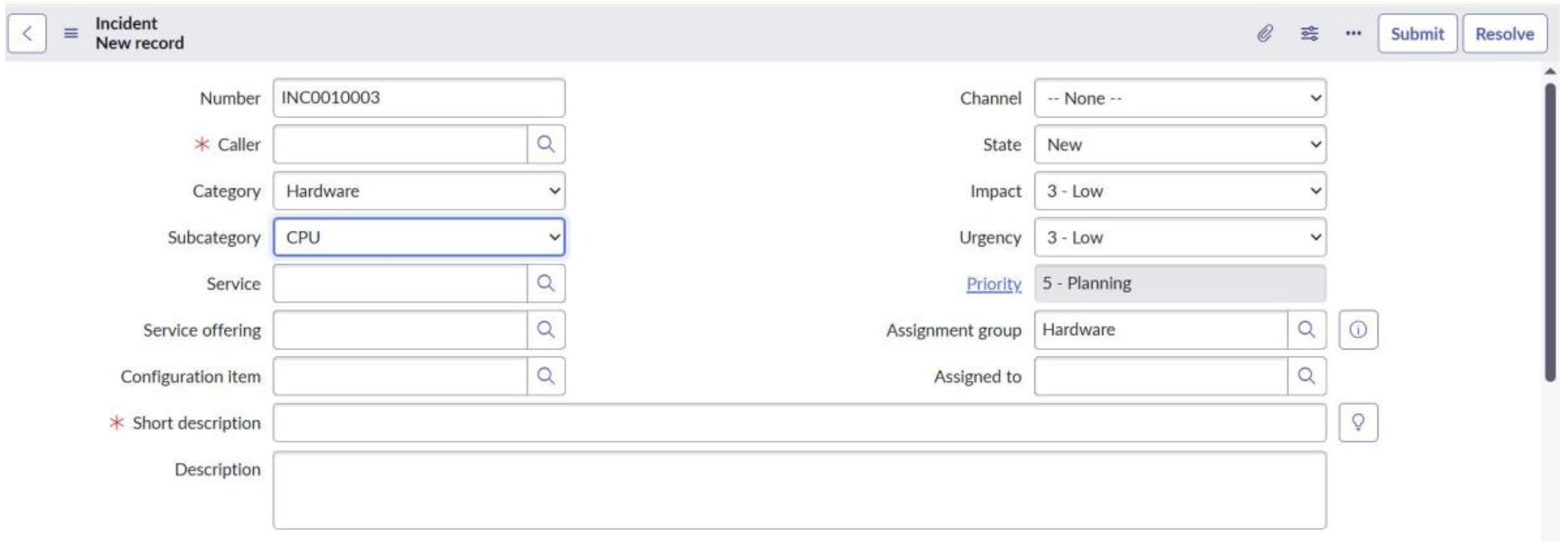
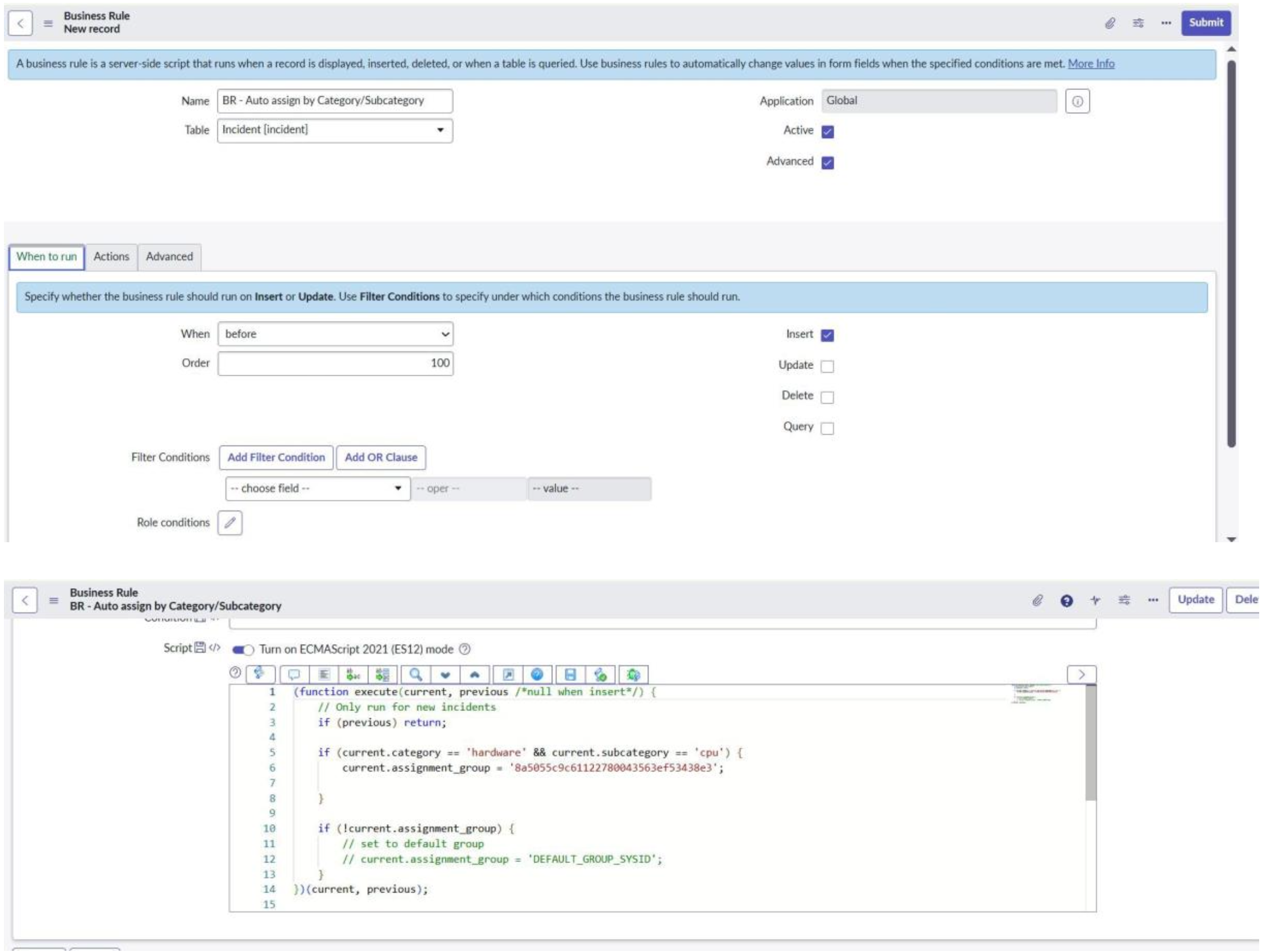
Scenario A : Auto-assign Incidents based on Category + Subcategory
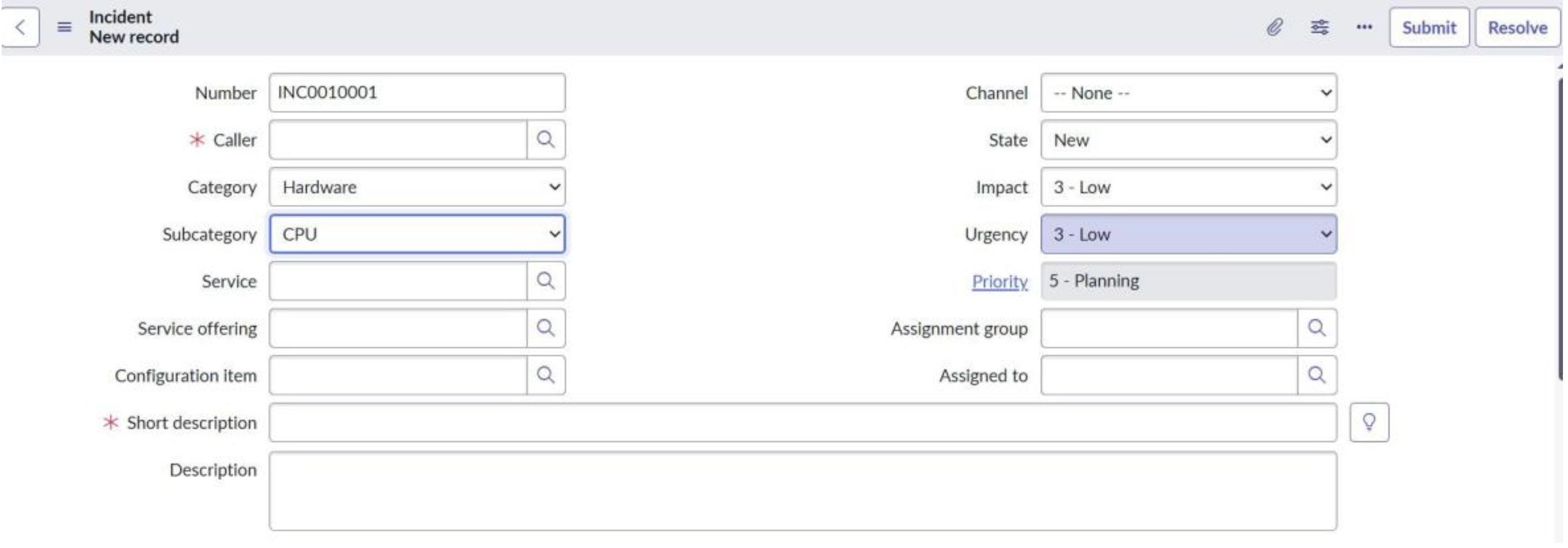
OOB solution: Assignment Rules / Data Lookup
Custom solution: Scripted assignment logic
Best Choice: OOB — it is stable, maintainable, and upgrade-safe.
Scenario A : Auto-assign Incidents based on Category + Subcategory
Requirement:
In a “Laptop Request” catalog item:
➢ If Laptop Type = MacBook, show & make RAM Size mandatory
➢ If Laptop Type = Windows, show & make Processor Type mandatory
PART 1 — OOB Solution (Catalog UI Policies)
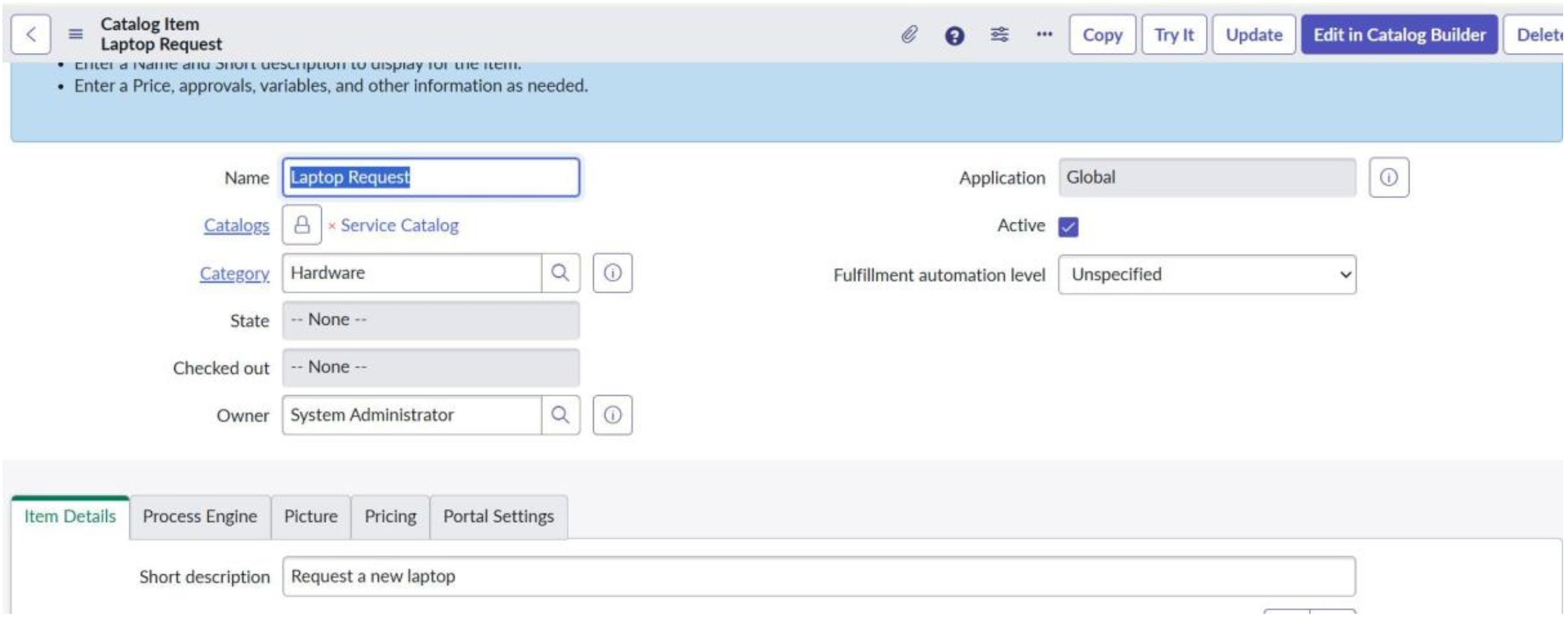
Step 1: Create a Catalog Item
Path: Service Catalog → Catalog Definitions → Maintain Items → New Fields to fill:
Name: Laptop Request Catalog
Service Catalog
Category: Hardware (or any category)
Short Description: “Request a new laptop”
Step 2: Create Variables
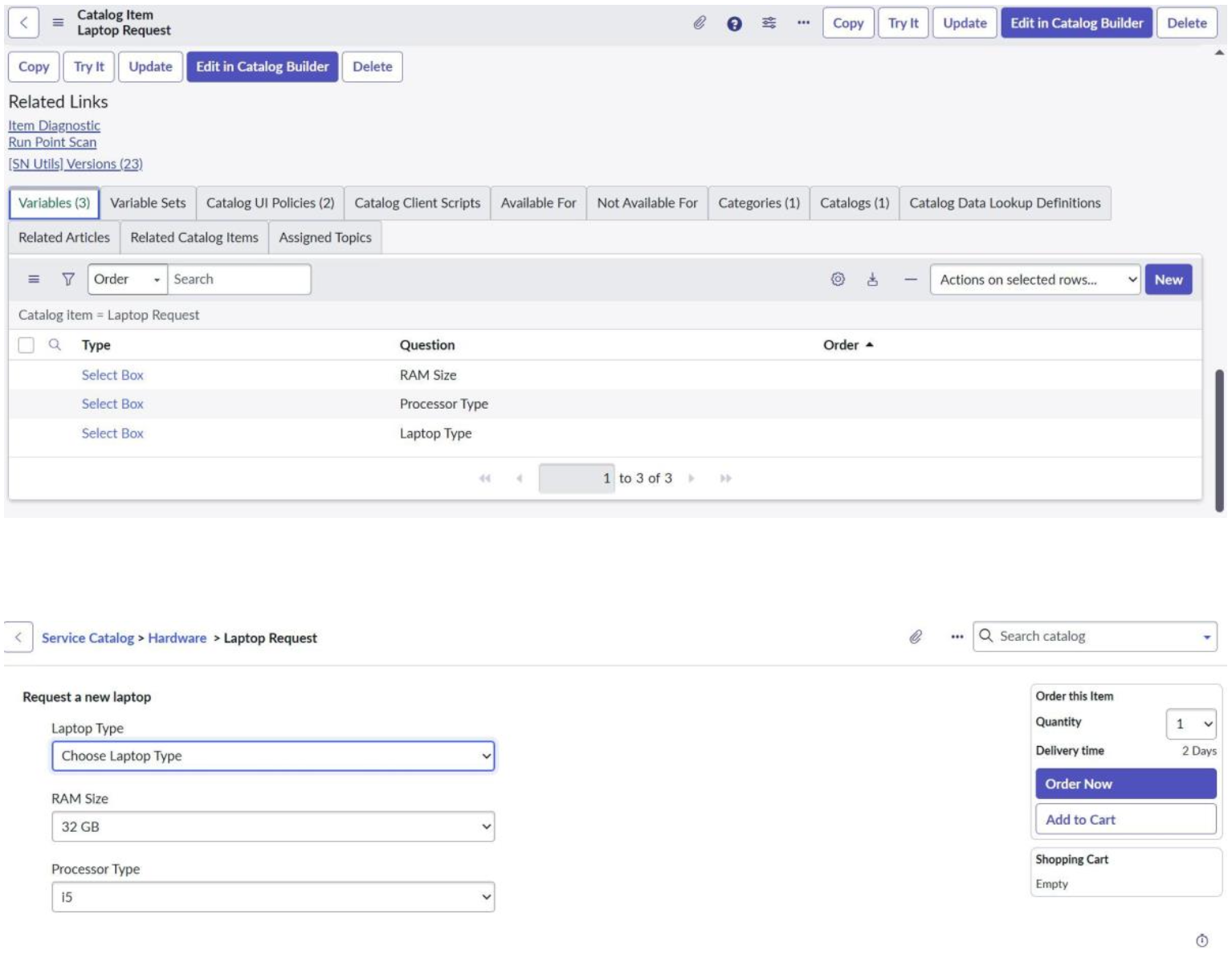
Path: Inside the item → Variables Related List → Create 3 new variables
1. Laptop Type
Type: Select Box
Choices: Choose Laptop Type, MacBook, Windows
1. RAM Size
Type: Select Box
Choices: 8GB, 16GB, 32GB
2. Processor Type
Type: Select Box
Choices: i5, i7, i9
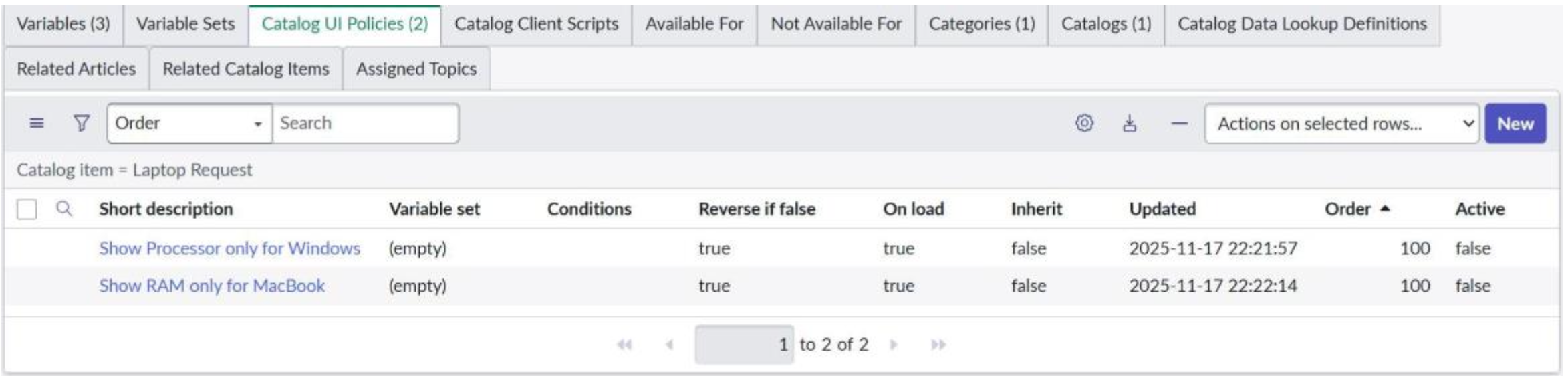
Step 3: Create Catalog UI Policy
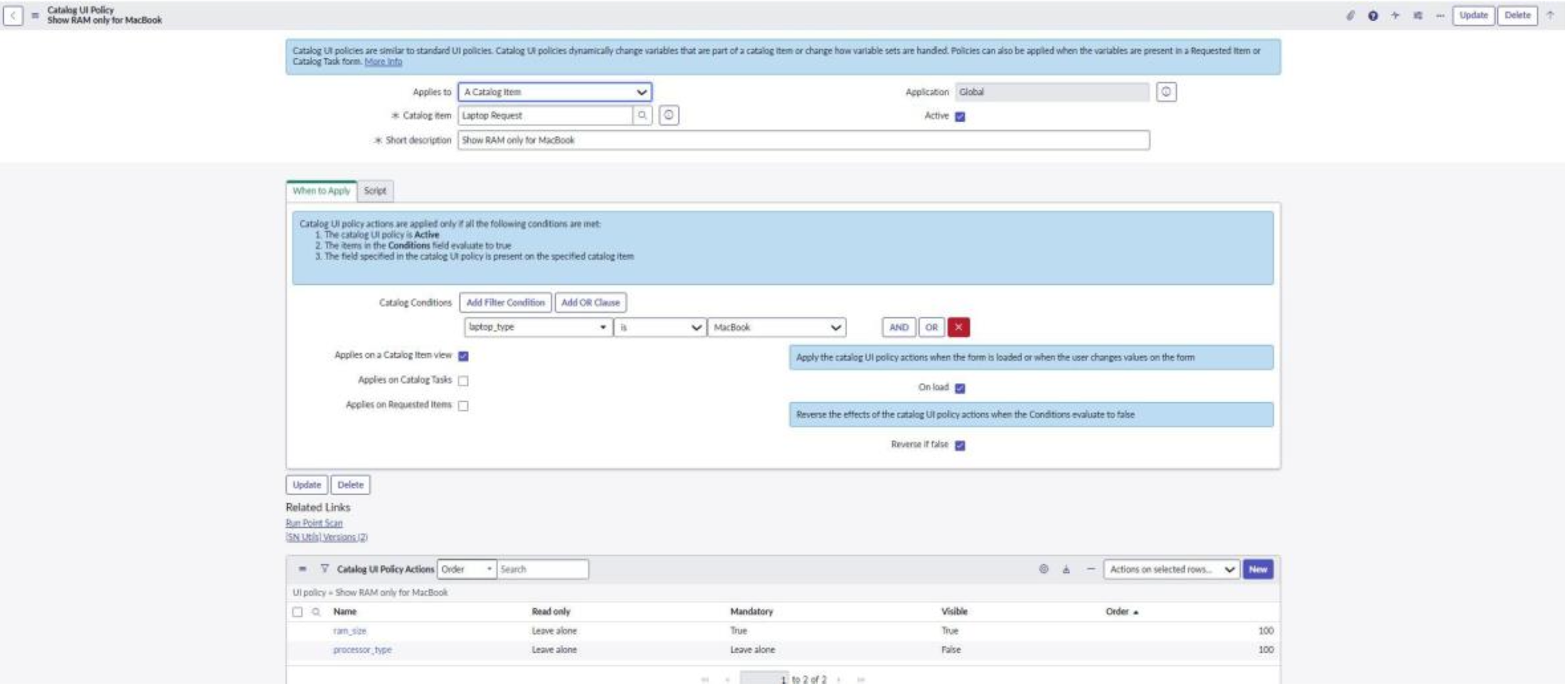
Path: Inside the Item → Catalog UI Policies → New
UI Policy 1: Show RAM only for MacBook
Condition: Laptop Type = MacBook Submit
Then add Actions:
RAM Size → Mandatory = true RAMSize → Visible = true Processor Type → Visible = false
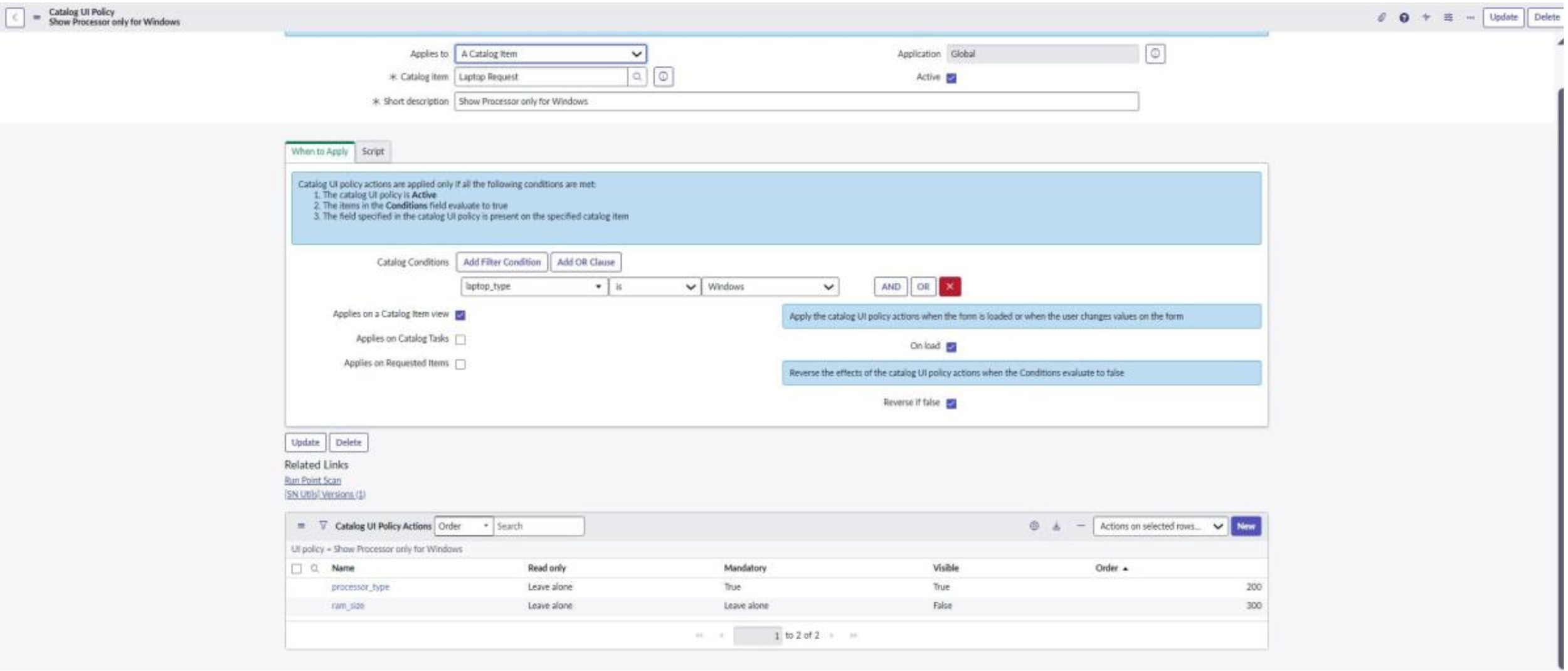
UI Policy 2: Show Processor only for Windows
Condition: Laptop Type = Windows
Add actions:
Processor Type → Mandatory = true Processor Type → Visible = true RAM Size → Visible = false
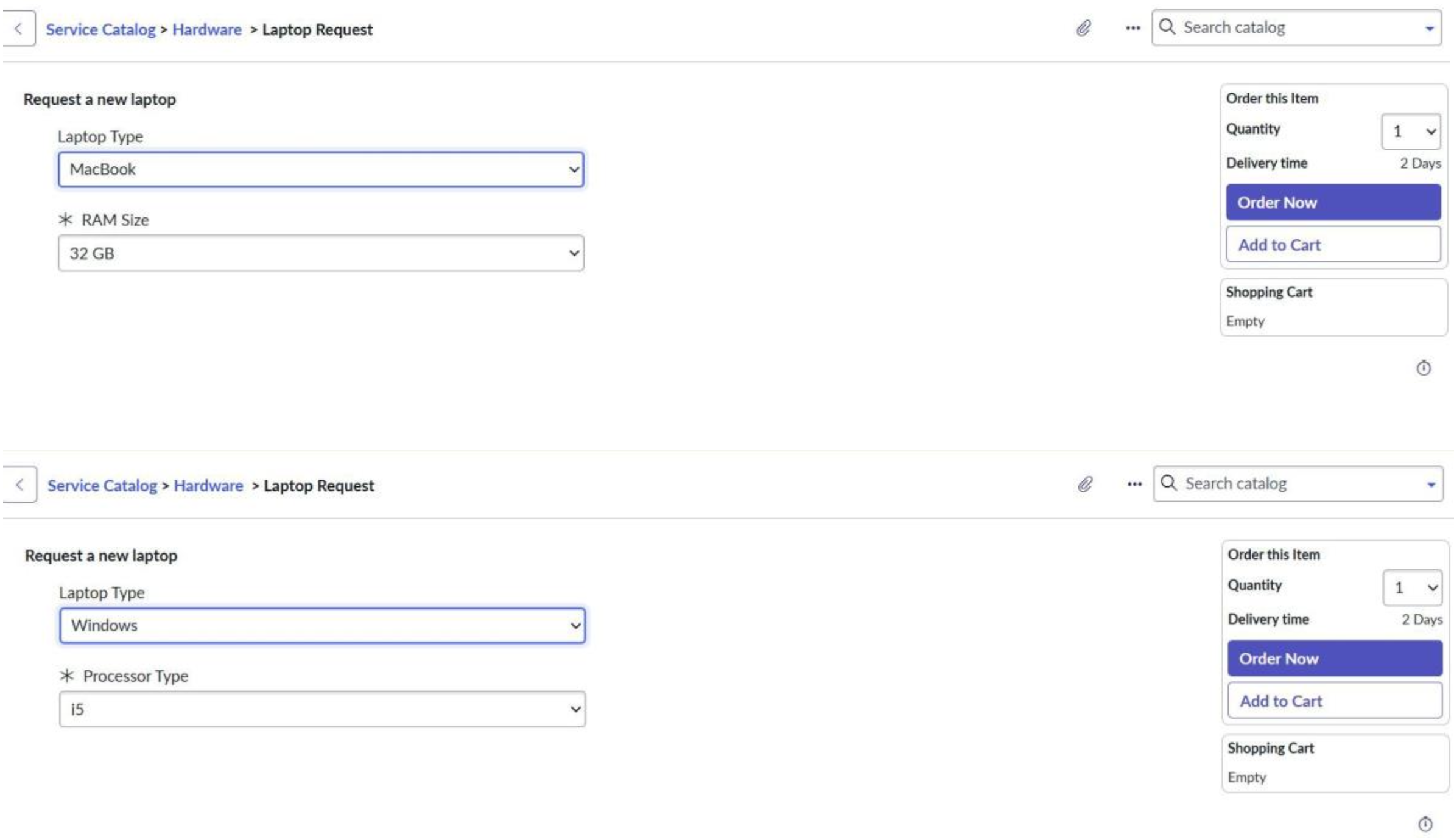
Step 4: Test in Service Portal
Path: Service Portal → Order Something → Laptop Request Test:
Select MacBook → RAM becomes visible + mandatory
Select Windows → Processor becomes visible + mandatory
PART 2 — Custom Solution (Catalog Client Script)
Step 1: Disable your UI Policies (optional for testing)
Go to UI Policy list → Make Active = false. (Only to test the custom solution clearly.)
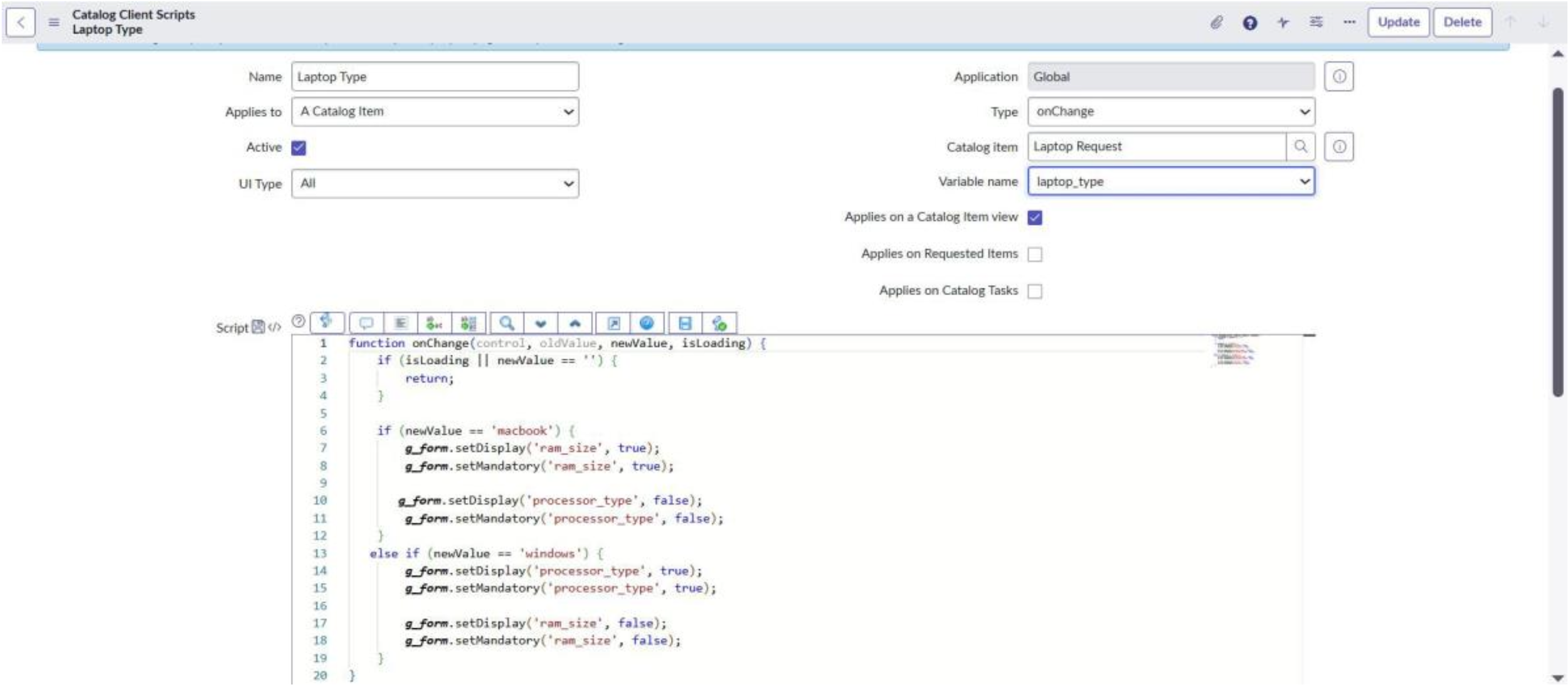
Step 2: Add Catalog Client Script
Path: Inside the Catalog Item → Catalog Client Scripts → New Name: Laptop Type
Applies to : A catalog Item
Script Type: onChange
Catalog Item : Laptop Request
Variable Name : laptop_type
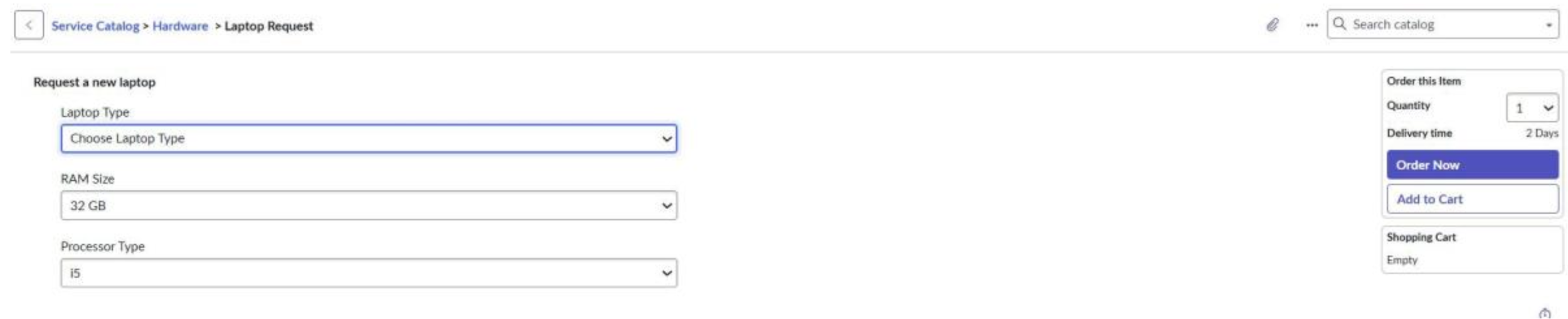
Step 3: Test in Service Portal again
Check if the script works exactly like the UI Policy.
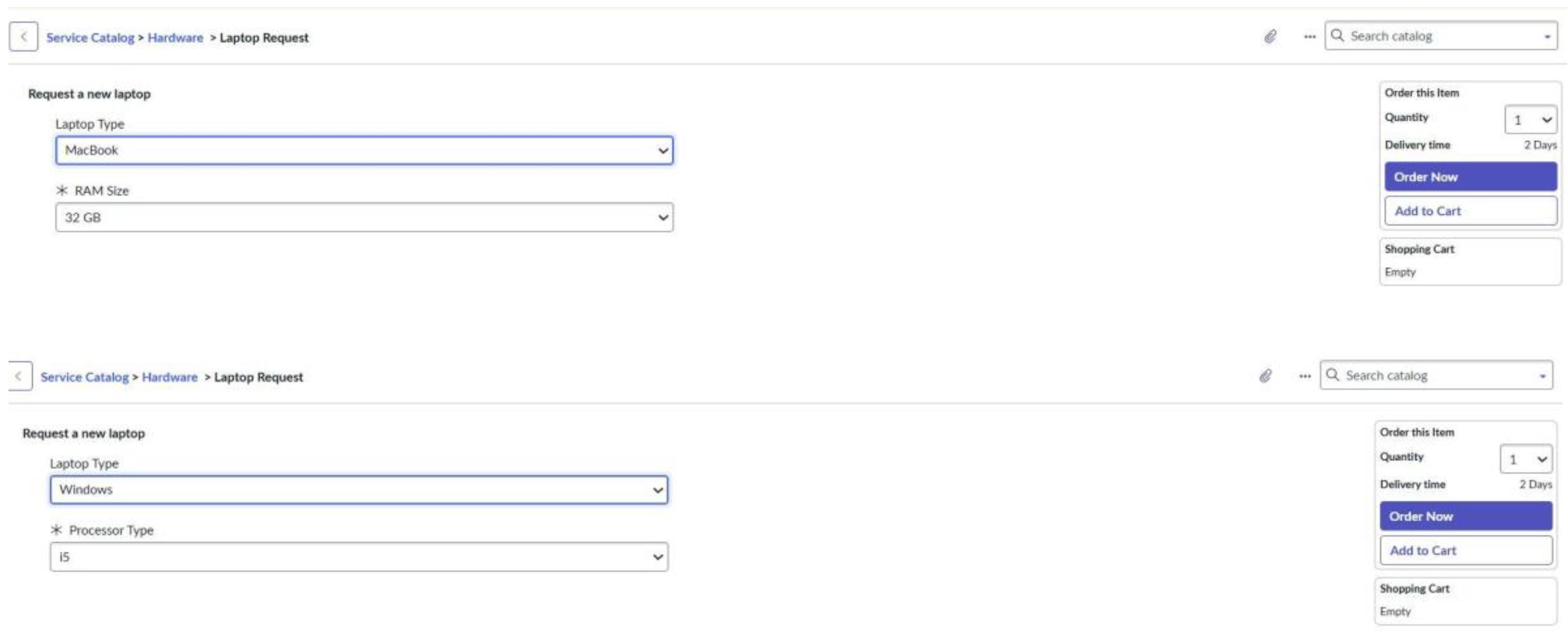
Which is Better Here? Use OOB (Catalog UI Policies) first. UI Policies are:
Easier to read and maintain
Configurable by admins without code
Better aligned with ServiceNow best practices
Client Scripts should be used only when UI Policies cannot achieve the required logic.
Scenario C: Automatically Create a Problem Record When an Incident Meets Specific Conditions
Requirement:
When an Incident is created with:
Priority = High, and
Short Description contains “change wifi request”
→ A Problem record should be automatically created.
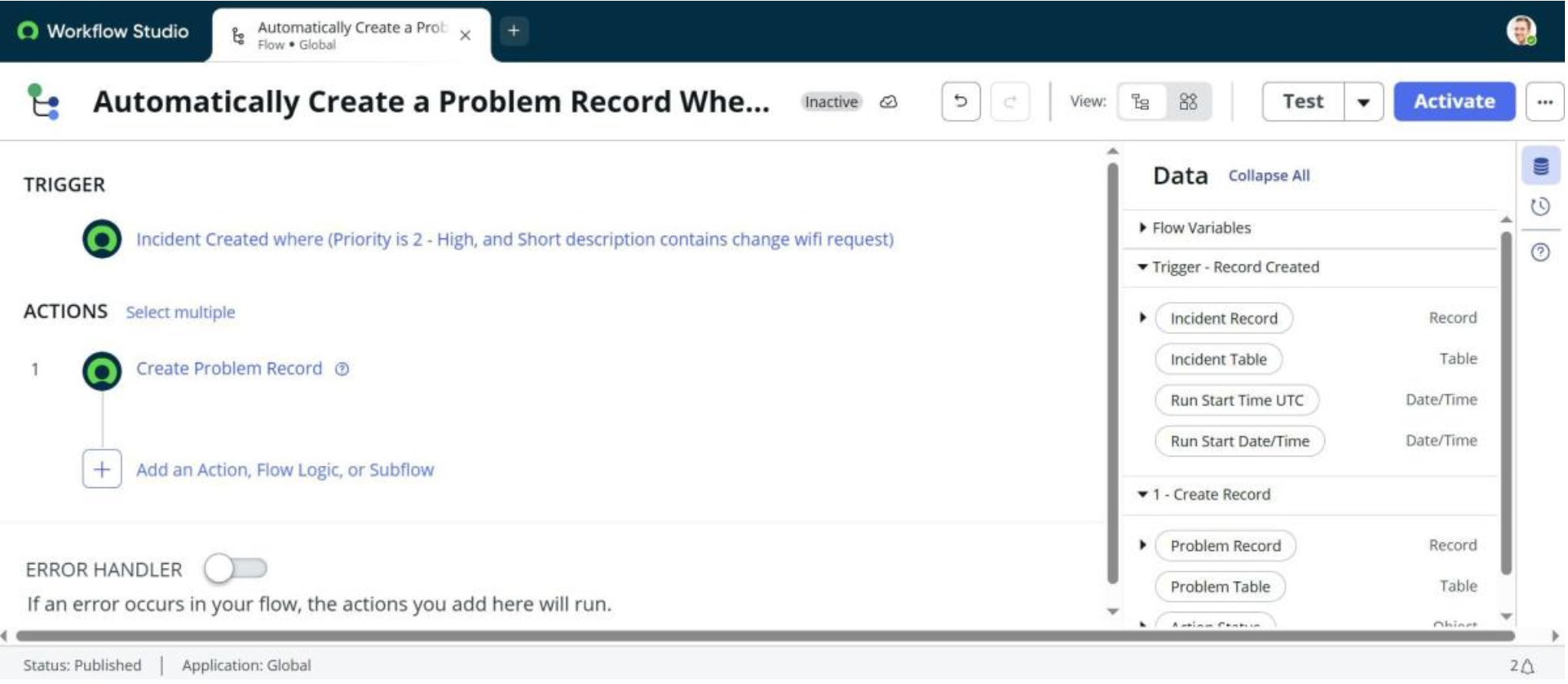
OOB Solution : Flow Designer Steps :
1. Open Flow Designer
Flow Designer → New → Flow
2. Configure Trigger
Trigger: Created
Table: Incident
3. Add Conditions
Priority is High AND
Short description contains "change wifi request"
4. Add Action → Create Record
Table: Problem
Map fields:
Problem Statement = Incident.short_description
Description = Incident.description
Impact = Impact
Correlation ID = Incident Number
5. Save & Activate Flow
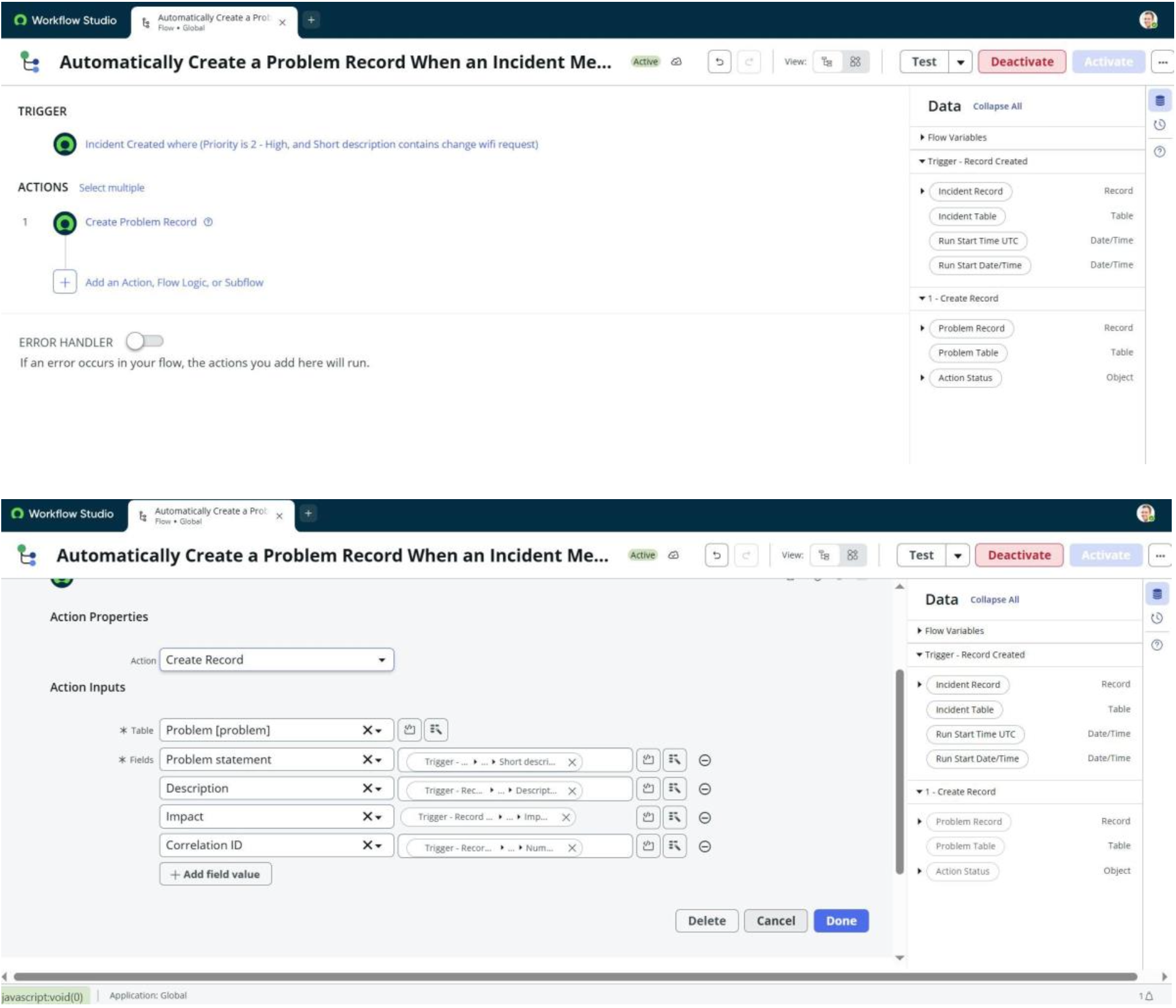
Test the Flow
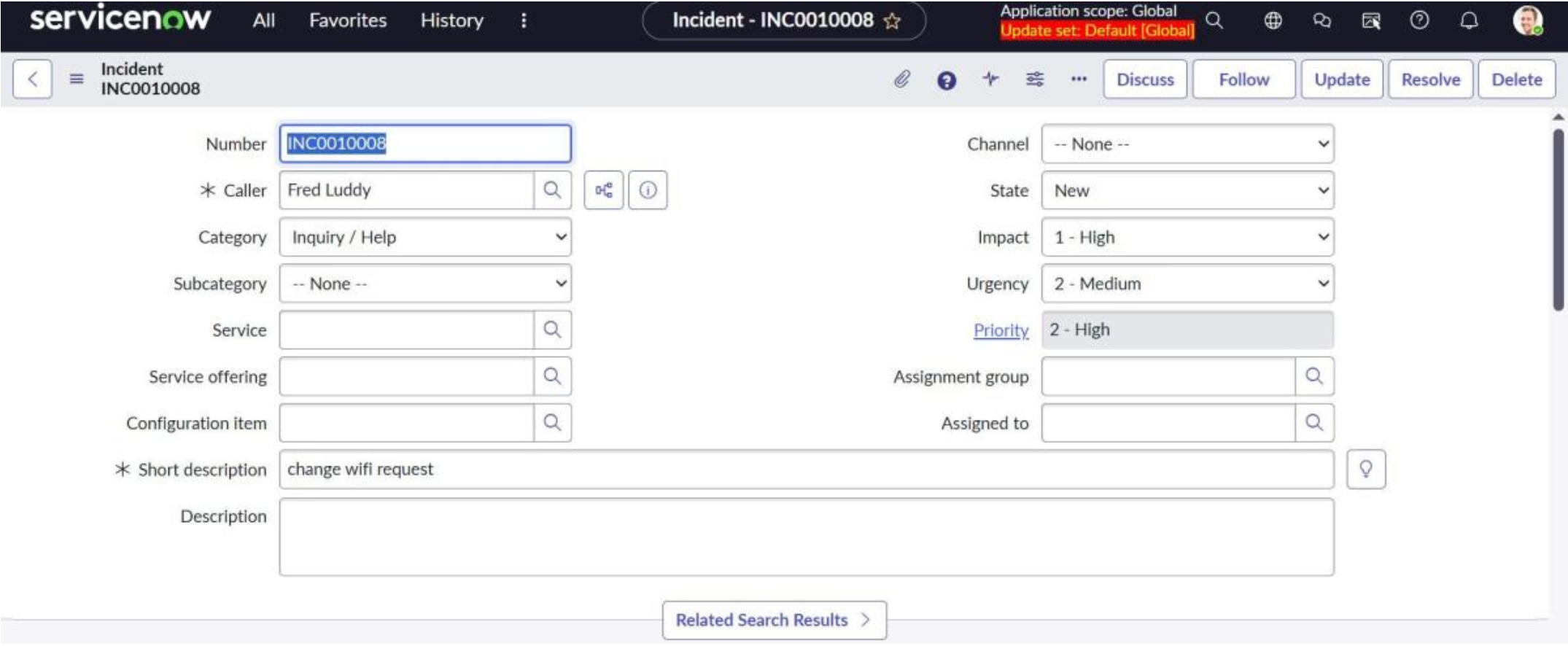
Create an incident
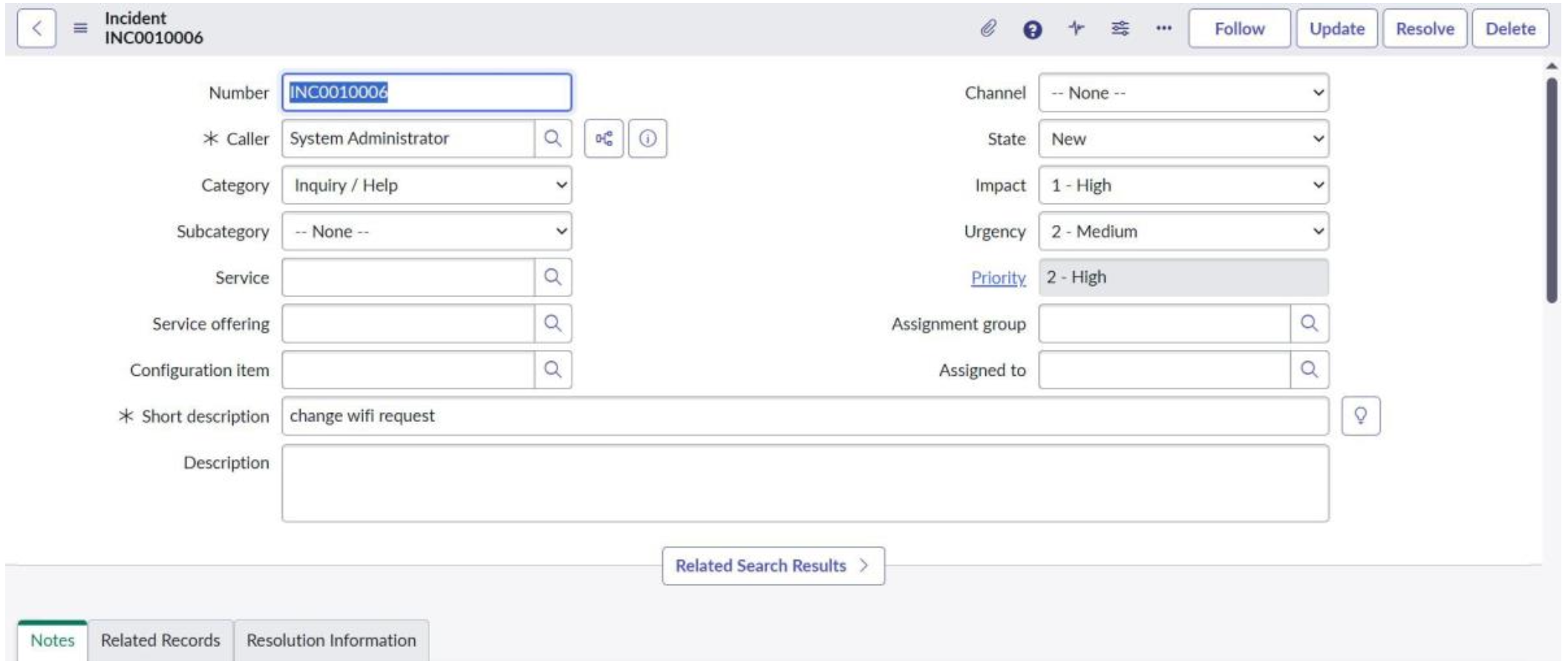
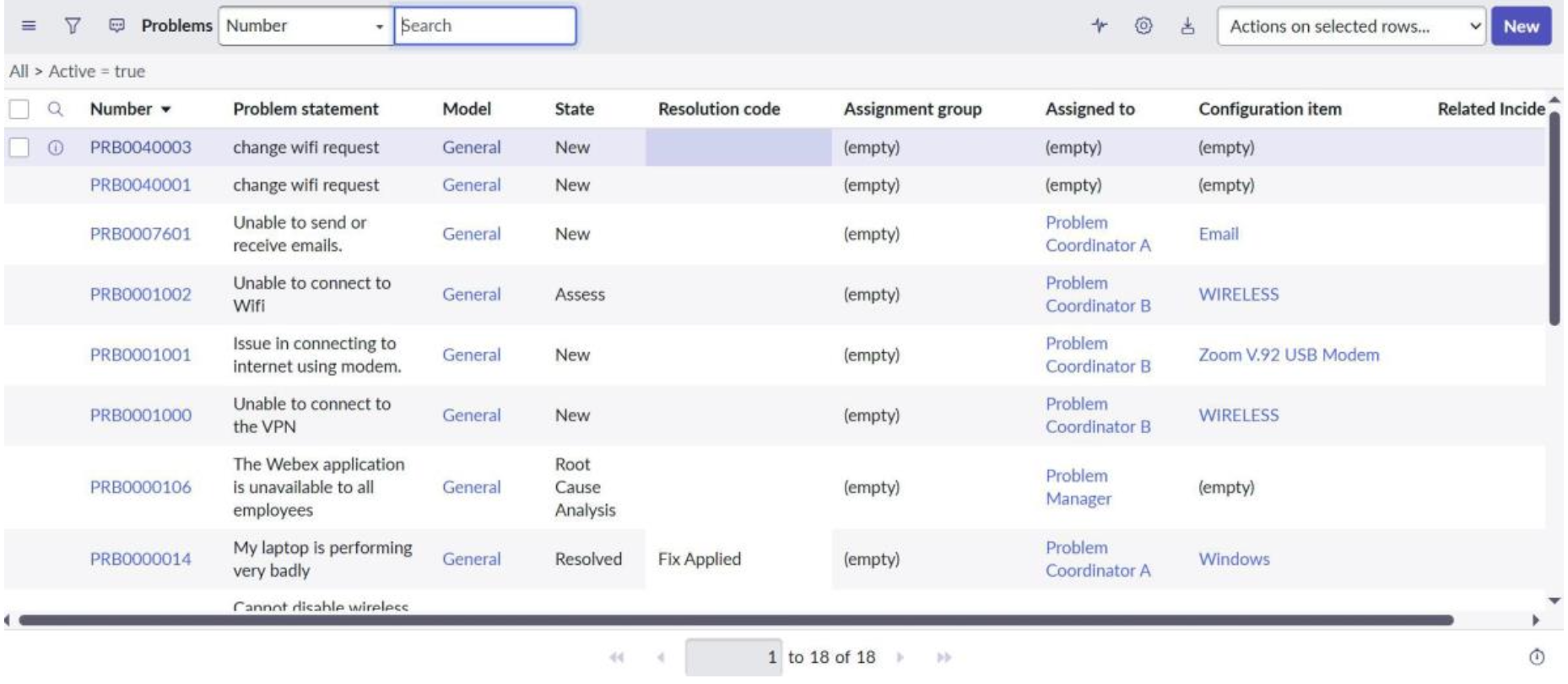
Whenever an Incident meeting those conditions is logged → a Problem ticket is automatically
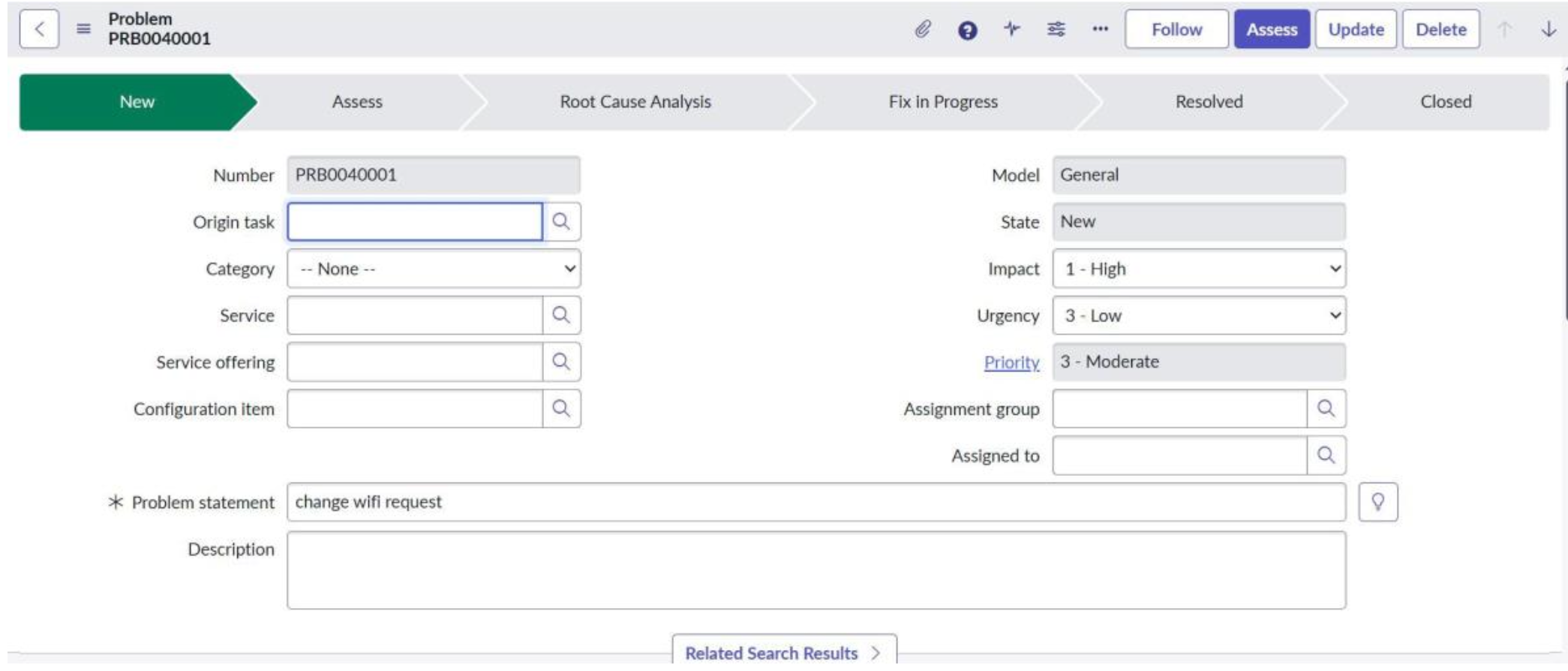
Custom Solution: Business Rule
Step 1 : Deactivate the flow created
Step 2 :
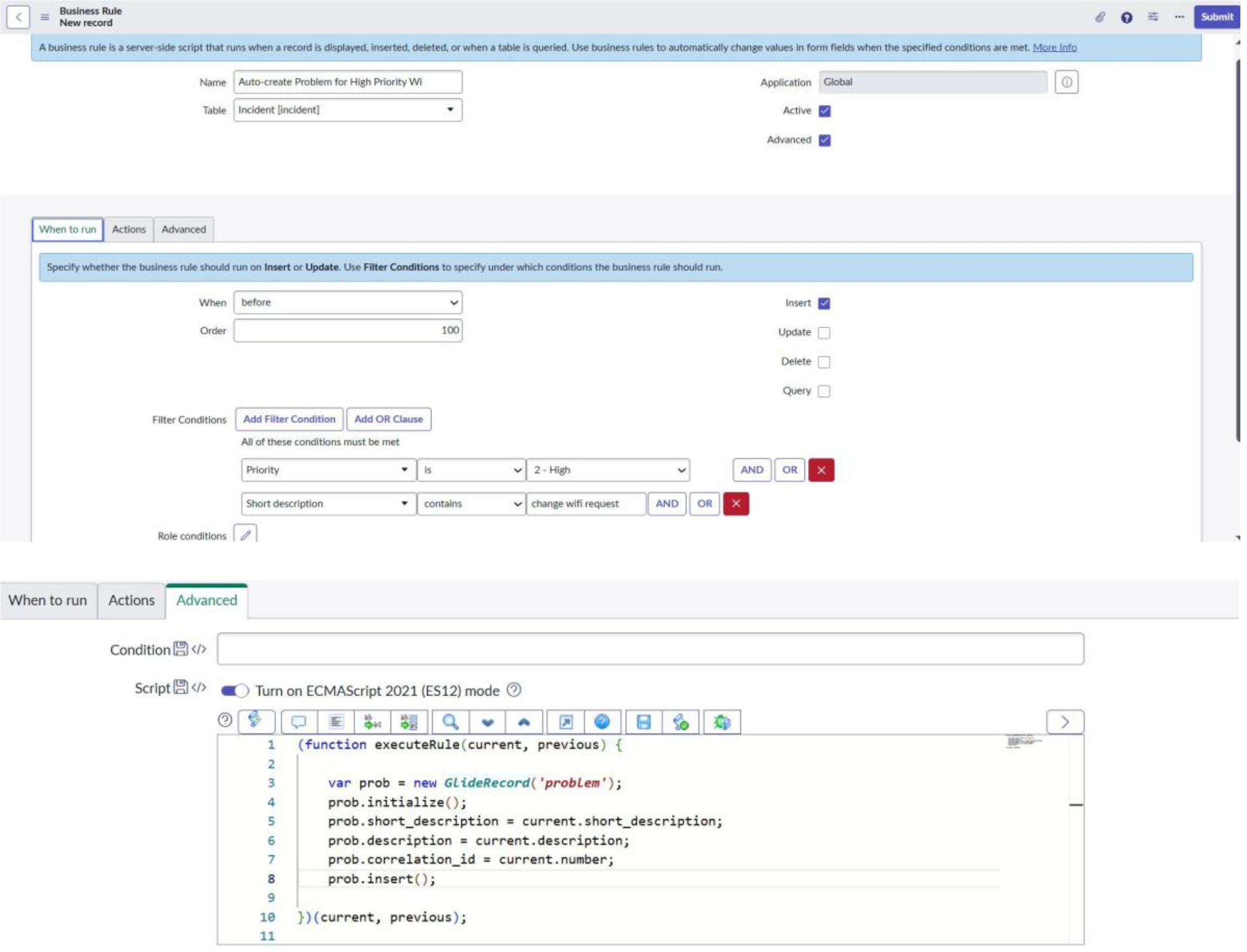
1. System Definition → Business Rules → New
2. Configure Basic Settings
Name: Auto-create Problem for High Priority Wifi
Incidents Table: Incident
When: after insert Filter
Conditions:
Priority = High
Short Description contains “change wifi request”
3. Add Script
4. Save the Rule
Test:
Problem record is created through a Business Rule immediately after the Incident insert.
OOB (Flow Designer) should be preferred in the above example.
Custom (Business Rule) should only be used if the requirement is too complex for Flow Designer or requires server-side logic.
Conclusion:
‘’OOB FIRST, CUSTOM WITH INTENT’’
Using OOB first is a sign of platform maturity.
The real mark of a mature ServiceNow practice is not how much custom code exists, but how intentionally it is used.
When you:
Start with OOB and configuration,
Reserve customization for unique business value, performance, or compliance, and
Make conscious trade-offs around maintenance and upgrade impact,
You get faster delivery, better platform health, lower technical debt, and happier end-users and stakeholdersA simple rule:
“Start OOB. Customize only when OOB can’t responsibly meet the requirement.”
If you follow that principle you’ll build instances that are easier to support, safer to upgrade, and more scalable in the long run.